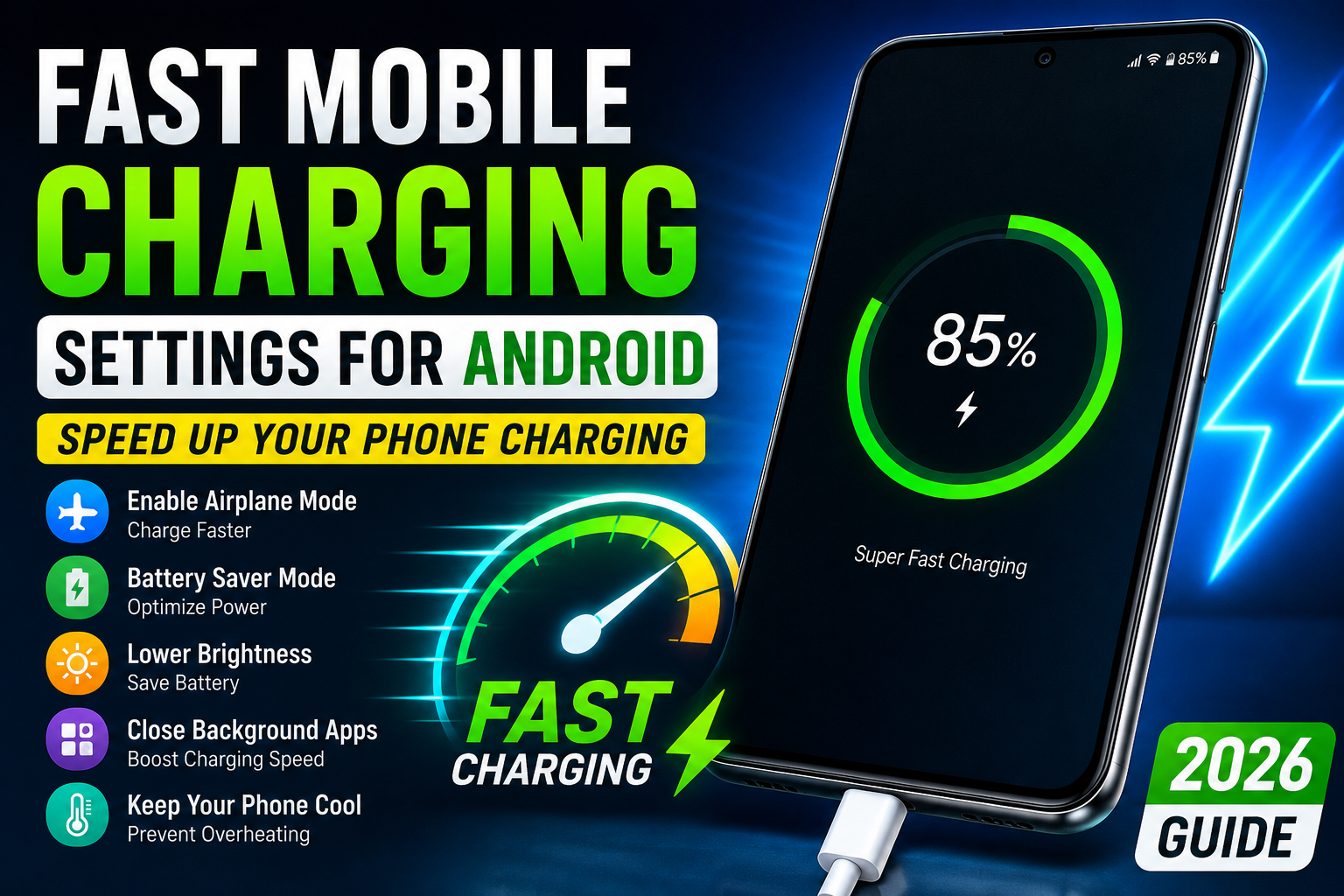
In today’s fast-paced digital world, nobody likes waiting for their smartphone to charge. Whether you’re using your device for work, gaming, social media, or entertainment, slow charging can be frustrating. Fortunately, there are several Android settings and optimization techniques that can significantly improve charging speed without requiring expensive accessories.
In this complete 2026 guide, you’ll learn the best fast mobile charging settings for Android, common mistakes that slow down charging, and practical tips to charge your phone faster and more efficiently.
Why Is Your Android Phone Charging Slowly?
Before changing any settings, it’s important to understand what causes slow charging. Common reasons include:
- Background apps consuming power
- Low-quality charging cables
- Damaged charging ports
- High screen brightness
- Battery-intensive features running continuously
- Overheating during charging
- Outdated Android software
By optimizing your phone’s settings, you can reduce power consumption and allow the battery to charge much faster.
1. Enable Airplane Mode While Charging
One of the easiest ways to speed up charging is enabling Airplane Mode.
When Airplane Mode is activated:
- Mobile networks are disabled
- Wi-Fi and Bluetooth connections stop
- Background synchronization is reduced
- Battery consumption decreases significantly
How to Enable Airplane Mode
- Swipe down from the top of your screen.
- Tap the Airplane Mode icon.
- Connect your charger.
This simple trick can noticeably reduce charging time.
2. Turn Off Unused Connectivity Features
Many Android users leave multiple wireless features enabled even when they are not needed.
Disable:
- Wi-Fi
- Bluetooth
- GPS
- NFC
- Mobile Hotspot
These services continuously search for connections and consume battery power, slowing down the charging process.
3. Activate Battery Saver Mode
Battery Saver Mode limits background activities and reduces system resource usage.
Benefits of Battery Saver
- Restricts background apps
- Reduces CPU activity
- Lowers screen effects
- Improves charging efficiency
How to Enable Battery Saver
Go to:
Settings → Battery → Battery Saver → Turn On
Most Android phones include this feature by default.
4. Lower Screen Brightness
The display is one of the biggest battery consumers on any smartphone.
For faster charging:
- Reduce brightness to minimum
- Enable Auto Brightness
- Turn off Always-On Display
If possible, keep the screen off completely while charging.
5. Close Power-Hungry Background Apps
Some apps continue running even when you’re not actively using them.
Examples include:
- Social media apps
- Video streaming apps
- Online games
- Navigation applications
How to Close Background Apps
- Open Recent Apps.
- Swipe away unnecessary applications.
- Use Device Care or Battery Optimization tools if available.
This helps your phone focus more power on charging instead of running apps.
6. Enable Adaptive Battery
Modern Android versions include Adaptive Battery technology.
This feature:
- Learns your app usage habits
- Restricts unnecessary background activity
- Optimizes power consumption
Enable Adaptive Battery
Go to:
Settings → Battery → Adaptive Battery
Turn it on for long-term battery efficiency and improved charging performance.
7. Avoid Using Your Phone While Charging
Many users watch videos, browse social media, or play games while charging.
This significantly slows charging because:
- The battery is receiving power and losing power simultaneously.
- The device generates extra heat.
- Charging circuits reduce charging speed to protect the battery.
For the fastest results, leave your phone untouched while charging.
8. Keep Your Phone Cool
Heat is the enemy of fast charging.
When the battery temperature rises:
- Charging speed automatically decreases
- Battery health may suffer over time
Tips to Reduce Heat
- Remove thick phone cases while charging
- Avoid direct sunlight
- Charge in a cool environment
- Don’t play games during charging
Keeping your device cool allows fast charging technology to work at maximum efficiency.
9. Use Fast Charging Settings (If Supported)
Most modern Android devices support:
- Fast Charging
- Super Fast Charging
- Turbo Charging
- Quick Charge
- USB Power Delivery (PD)
Check Fast Charging Settings
Go to:
Settings → Battery → Charging
Look for options such as:
- Fast Charging
- Super Fast Charging
- Fast Wireless Charging
Make sure these features are enabled.
10. Update Your Android Software
Software updates often include:
- Battery optimizations
- Charging improvements
- Performance enhancements
- Bug fixes
Check for Updates
Go to:
Settings → Software Update → Download and Install
Keeping your device updated ensures optimal charging performance.
Best Charging Habits for 2026
Follow these habits for better battery health and faster charging:
- Use original chargers whenever possible.
- Avoid charging from low-quality USB ports.
- Keep the battery between 20% and 80%.
- Clean the charging port regularly.
- Use certified charging cables.
- Avoid overnight charging when possible.
Common Mistakes That Slow Down Charging
Many users unknowingly reduce charging speed by:
- Using cheap chargers
- Charging while gaming
- Keeping maximum brightness enabled
- Running multiple apps in the background
- Charging in hot environments
- Ignoring software updates
Avoiding these mistakes can make a noticeable difference.
Frequently Asked Questions (FAQ)
Does Airplane Mode Charge Faster?
Yes. Airplane Mode disables network communication, reducing battery usage and allowing the device to charge faster.
Is Fast Charging Safe for Android Phones?
Yes. Modern Android phones include safety mechanisms that regulate voltage and temperature to protect the battery.
Does Battery Saver Help Charging Speed?
Battery Saver reduces background power consumption, which can improve charging efficiency.
Why Does My Phone Charge Slowly Even With a Fast Charger?
Possible reasons include:
- Damaged cable
- Dirty charging port
- Background apps
- Overheating
- Battery degradation